
How to Install Simba ODBC Driver for Google BigQuery

Simba helps builders embed trusted intelligence into every product, so they can deliver consistent, trusted answers in a world running on AI.
Increasing demand for accessing Google BigQuery data via BI tools means more requests to test our Simba drivers for BigQuery. While a variety of applications have built-in connectors to BigQuery, many enterprises still have difficulty establishing connectivity between BigQuery and BI tools like Power BI.
Simba ODBC drivers typically allows much more granular configuration options than BI tools. This allows you to tune the connection for your specific requirements, sometimes unlocking significant performance or capability benefits.
In this blog article, we will guide you through the three steps to easily install and configure the Magnitude Simba Google BigQuery ODBC connector for accessing GBQ data in your BI tool.
What is the Simba ODBC Driver for Google BigQuery?
The Simba ODBC Driver for Google BigQuery is a powerful tool that facilitates the connection between Google BigQuery, a highly scalable and serverless data warehouse, and various analytics and business intelligence tools that support ODBC connectivity, such as Power BI, Excel, Tableau, and others. Developed by Magnitude Simba, this driver allows users to connect to their BigQuery datasets directly from these tools, enabling seamless data retrieval and manipulation.
Key Features:
High-Performance Data Access: The Simba ODBC Driver is optimized for performance, ensuring that even large datasets in Google BigQuery can be queried efficiently and effectively.
Standards-Based Connectivity: As an ODBC-compliant driver, it adheres to industry standards, ensuring broad compatibility with numerous applications and databases.
Security: The driver supports secure data connections, including encryption, to protect sensitive information during data transfer between BigQuery and the connected application.
Ease of Use: It simplifies the setup process, allowing users to establish connections without needing extensive technical knowledge, making it accessible to a wide range of users from data analysts to business users.
By using the Simba ODBC Driver for Google BigQuery, organizations can unlock the full potential of their data stored in BigQuery, enabling comprehensive analysis and reporting across various platforms. This connectivity empowers users to leverage their data assets fully, making informed decisions based on accurate, real-time data insights.
How to Install Simba ODBC Driver for Google BigQuery in 3 Steps
Download and install the Simba Google BigQuery ODBC connector.
Allocate the license.
Configure Simba BigQuery ODBC connector.
Let’s dive deeper into each step.
1. Download and install the Simba Google BigQuery ODBC connector.
You should choose the platform on which you will run your installation before accessing the form. For our example we will be using Windows version. After downloading the connector, double click the MSI file to install it:
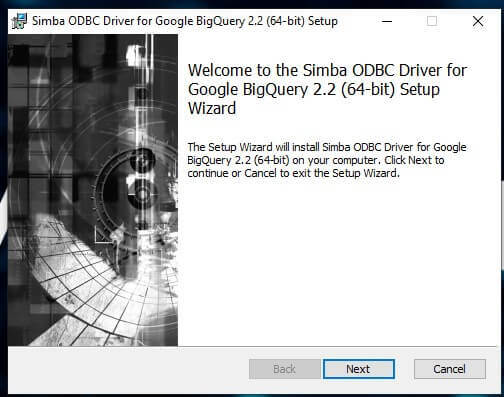
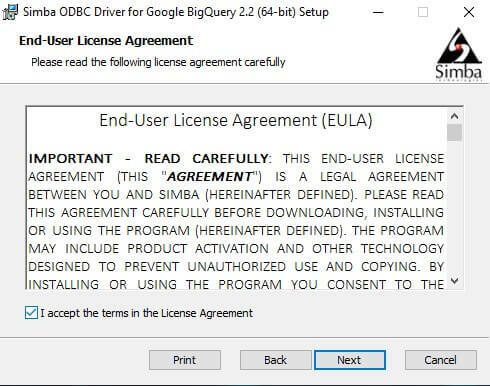
Click NEXT to accept the licensing agreement
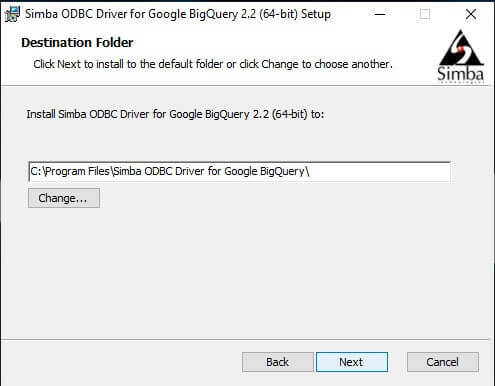
Click NEXT to provide the directory where you’ll install the driver:
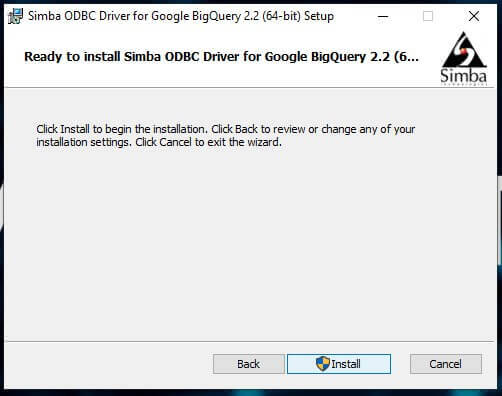
Click INSTALL to proceed to installation
Let the installer complete the installation and click “Finish.”
2. Allocate the license.
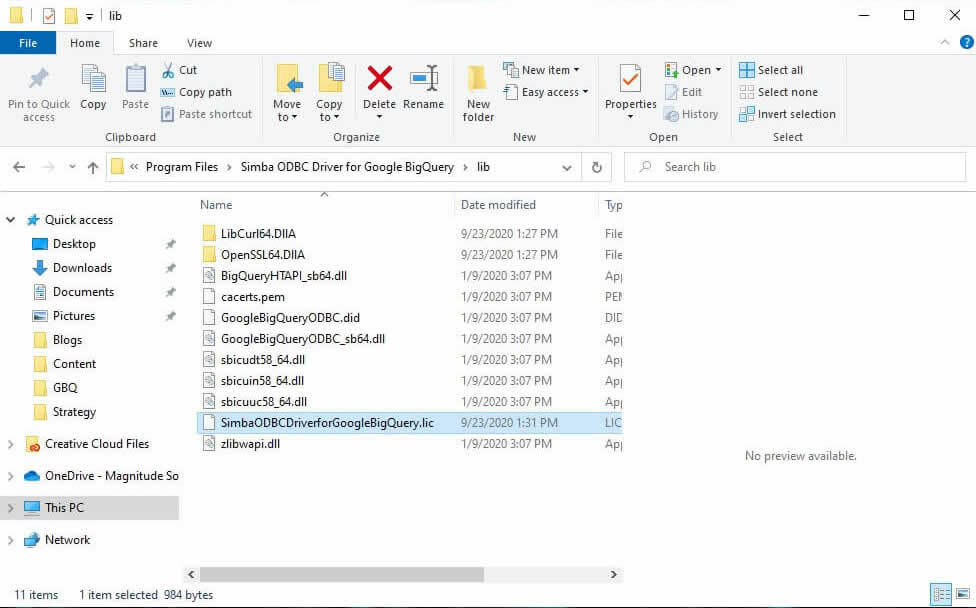
Once you have installed the connector, verify that the license file is in the correct location. It must be in the /lib/ folder underneath where the connector has been installed.
NOTE: The license file is sent via email after you submit the form. If you have not received the license, check your junk folder.
3. Configure Simba BigQuery ODBC connector and test your connection.
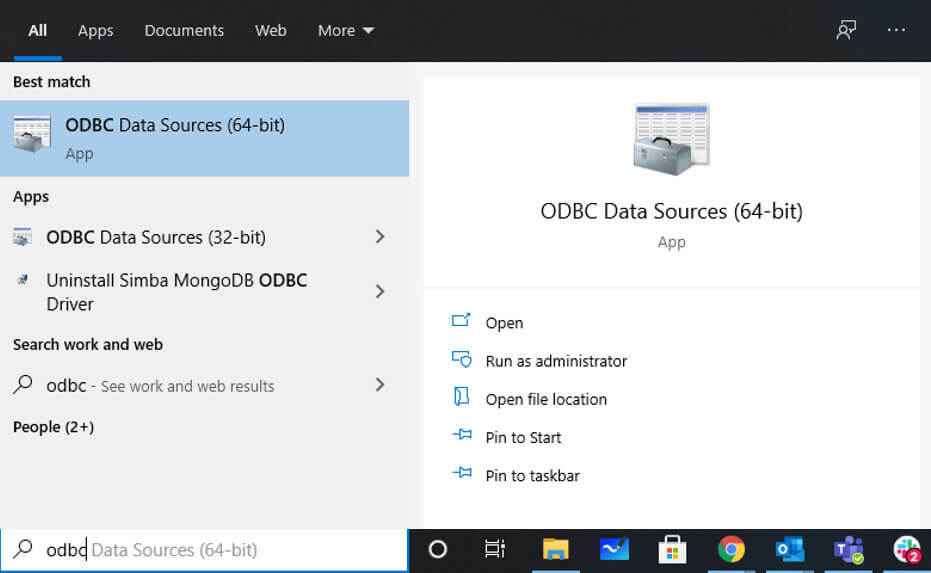
Click SEARCH and go to ODBC Administrator
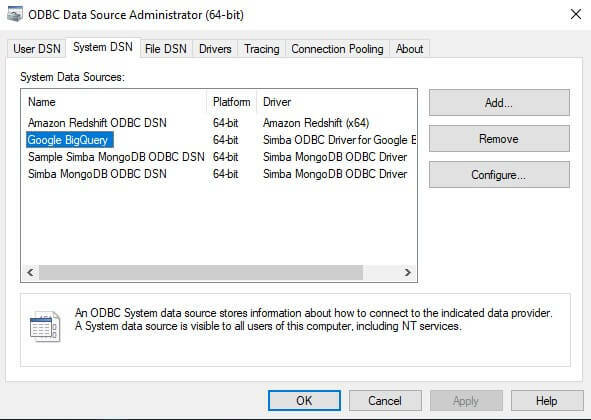
Click on the System tab and look for the Simba Google BigQuery ODBC DSN.
Select it and press CONFIGURE to go to the Simba Google BigQuery ODBC DSN setup window.
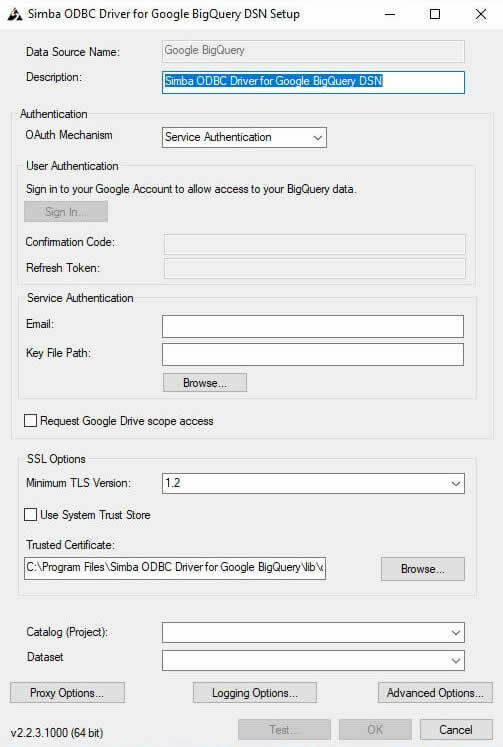
In the DSN you will need to adjust all settings appropriate to your case NOTE: For the detailed configuration options for Catalog/Project, Dataset, settings please see our documentation.
Test your connection When you have completed your configuration click TEST
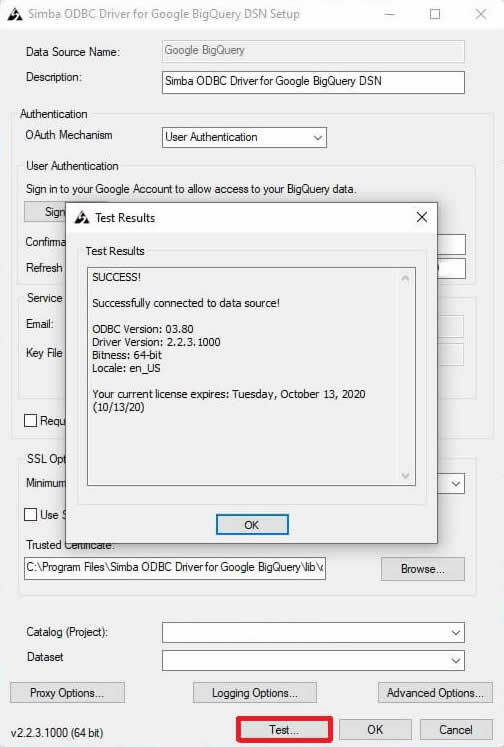
Connection test is successful! Now, click OK on the test window and on the DSN setup window to save your configuration.
Benefits of Using the Simba BigQuery ODBC Connector
The Simba BigQuery ODBC Connector is a powerful tool designed to seamlessly integrate Google BigQuery with Power BI, providing a range of benefits that enhance data access, analysis, and overall performance.
Seamless Integration: The Simba BigQuery ODBC Connector offers a straightforward way to connect BigQuery with Power BI, allowing users to leverage the vast data storage and querying capabilities of BigQuery directly within Power BI. This integration enables users to create detailed and insightful dashboards without needing to manage complex data retrieval processes.
High Performance: Designed for efficiency, the Simba connector ensures that data is retrieved quickly and reliably from BigQuery. This performance is crucial when dealing with large datasets typical of BigQuery environments, allowing users to conduct real-time analysis without significant delays.
Standards-Based Connectivity: The Simba connector adheres to industry standards for ODBC, ensuring compatibility with a wide range of applications beyond Power BI. This standards-based approach simplifies the integration process and reduces the risk of compatibility issues.
Robust Data Access: With the Simba BigQuery ODBC Connector, users can access and analyze massive datasets stored in BigQuery without needing to export them. This direct access reduces the time and resources required to move data between systems, making the analysis process more efficient and streamlined.
Advanced Security Features: The connector includes robust security features that ensure sensitive data is protected during transmission between BigQuery and Power BI. This includes support for encryption and other security protocols, which are critical for maintaining data integrity and compliance with industry regulations.
Scalability: As your data needs grow, the Simba connector scales with you. Whether you're analyzing gigabytes or terabytes of data, the connector can handle the workload, making it a future-proof solution for growing businesses.
Ease of Use: The connector is designed to be user-friendly, with straightforward setup and configuration processes. This ease of use reduces the technical barrier for users, allowing data analysts and business users to connect and query their BigQuery data with minimal technical support.

Need Help? If your test did not succeed, check your configuration and try again. If you ran into trouble installing and configuring your connector, check out the installation guide and our FAQ or contact our support team.
As you have successfully installed, configured and tested your driver connection with Simba Google BigQuery ODBC connector you can test access to BigQuery data in any BI tool.
Need to get Google BigQuery data into your BI tool? Download the Google BigQuery ODBC driver or Talk to us about your use case.
Learn more:
How to connect Google BigQuery to Power BI
How to Connect Google BigQuery to Microsoft Excel.
How to configure and connect the Simba Spark JDBC Driver with SQLLine