
Connect Power BI to BigQuery: Your Step-by-Step Guide

Simba helps builders embed trusted intelligence into every product, so they can deliver consistent, trusted answers in a world running on AI.

Actionable, informed decisions are more important than ever in today’s competitive business landscape. However, that data is only as valuable as it is understandable. This is where the need for powerful data visualization tools comes into play. As Microsoft’s premier business analytics tool, Power BI works to turn raw data from sources like Google’s BigQuery into actionable business insights that allow teams to make data-backed decisions.
What is Power BI?
Power BI is a business analytics tool that allows users to better visualize and share insights gleaned from their data. Practically speaking, it facilitates the consolidation and transformation of raw data into meaningful reports or dashboards that can drive business growth. From there, reports can be shared across various teams or embedded into applications. Power BI is especially advantageous as it is able to go beyond descriptive analytics to predict future outcomes, regardless of enterprise size. With Power BI integration, data analysis teams are able to make more informed, as well as more accurate, business decisions to keep them moving forward.
Power BI as a Planning Tool Webinar
Watch NowWhy Should I Connect Power BI to BigQuery?
While connecting Power BI to BigQuery may initially sound like more hassle than it’s worth, linking the two platforms provides a number of benefits that far outweigh the initial setup time. When properly connected, Power BI can unleash the full potential of your data analysis through BigQuery, providing the following key benefits to your team:
Data Consolidation
BigQuery is known for its ability to manage and process large datasets, effectively consolidating data from a variety of sources and locations into a singular data store. However, what BigQuery makes up for in storage, it lacks in visualization and reporting. By connecting Power BI, though, you can more easily access, analyze, and visualize the full scope of your data automatically, rather than pulling it manually.
Advanced and Accurate Analytics
While BigQuery can store and perform complex analytics, it is by no means perfect. Using the platform requires advanced analytics knowledge to spot errors and prepare data before it can be used. This manual effort can prevent your team from being able to access actionable insights, or worse, make them with out-of-date information. With Power BI, your team can be sure your data is digestible and, most importantly, accurate.
Scalability
As your business grows, it is vital that your data processing abilities can scale with that growth, rather than cause it to stagnate. Your reports are all the more critical for making business decisions or sharing updates with stakeholders. With Power BI efficiently querying BigQuery, large data sets won’t cause performance degradation, but instead, will accelerate the process of reporting and updating dashboards.
Security and Compliance
Data compliance and security compliance can be challenging when sharing data or using multiple platforms. This, however, is not the case when connecting BigQuery and Power BI. Even after connecting the two platforms, your team will be able to maintain the powerful data governance and security features that BigQuery is known for, without losing out on the visualization that Power BI is known for. Your team will still retain the access controls, encryption, authentication methods, and auditing capabilities you rely on.
Seamless Integration
Once Power BI is integrated, your team unlocks the capabilities of other Microsoft products as well, allowing your processes to run smoothly and reducing your need for manual intervention. With additional integrations, you can focus on automating your data processes instead of spending your time on the flow of data management.
Requirements for connecting Power BI and BigQuery
With Google BigQuery making it easy to store and query your data at scale, it makes sense that you’ll want to connect it to tools like Power BI to get further insights and valuable dashboards. Smooth and reliable data connectivity between Google BigQuery and Microsoft Power BI is a crucial component of generating actionable insights from trusted data. Before connecting Power BI to BigQuery, be sure to have the following requirements in place for a seamless transition.
A BigQuery project is already set to the appropriate dataset permissions.
Power BI Desktop must be installed in addition to a BigQuery ODBC connector like the Simba BigQuery ODBC.
Google Cloud credentials are in place to authenticate the connection.
Network configurations are established to ensure smooth communication.
IMPORTANT: Before following these steps, ensure that the Simba BigQuery ODBC connector and Power BI are installed on your computer.
A Step-By-Step Guide for How to Connect BigQuery to Power BI
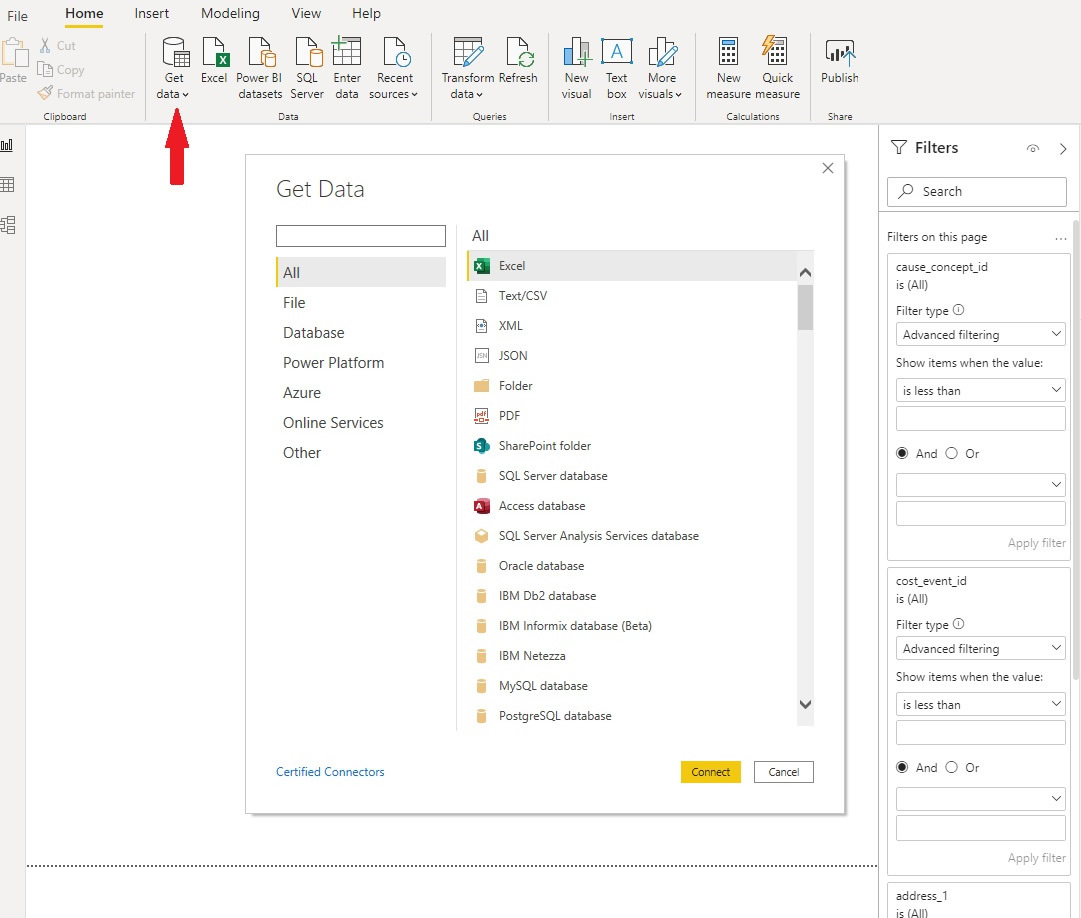
Step 1: Launch Power BI and Access “Get Data”
Start by opening Power BI. Once you locate the Get Data option under the Home tab, you can begin to access and connect to various data sources like BigQuery.
Step 2: Select the ODBC Data Source
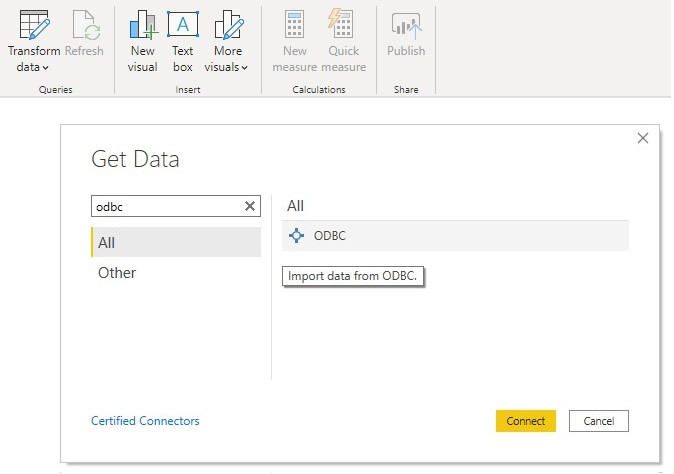
Once you’re in the Get Data window, type “ODBC” in the search bar. This will pull the ODBC drivers list. From there, you can select the ODBC option and click “Connect.”
Step 3: Choose and Configure the DSN
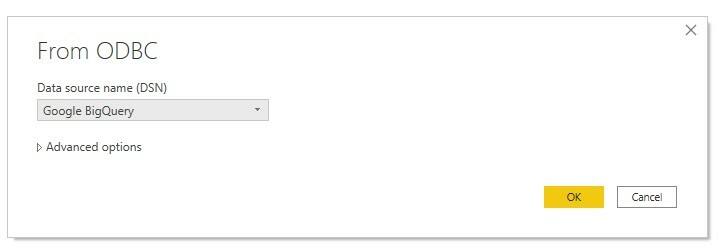
Select the DSN (in this case, Google BigQuery), from the dropdown and click “OK.” If you don’t immediately see it, you may want to verify that your connector is installed and configured correctly.
Step 4: Connect to Google BigQuery
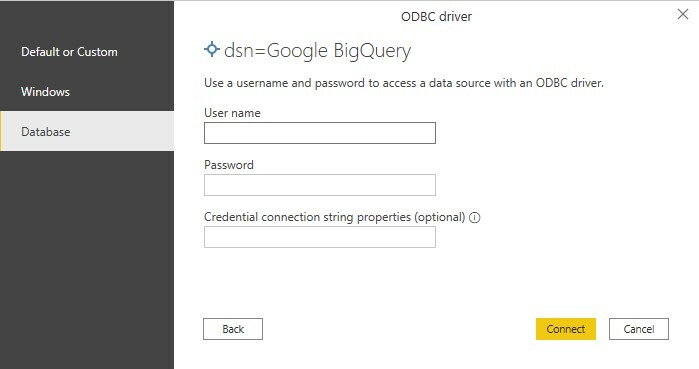
The first time you connect to BigQuery, you will likely need to enter a username, password, and credential connection string before you press connect. If you run into issues at this step, verify you have the correct permissions and that your credentials match your account details. NOTE: For information on how to configure and test your Google BigQuery DSN, use our documentation.
Step 5: Verify the Connection
Check for a successful connection. When the connection is successful, you will see a preview of your data source. From here, you can select the tables you need to start the project (you can edit them later). Click “Load” to import all selected data from BigQuery.
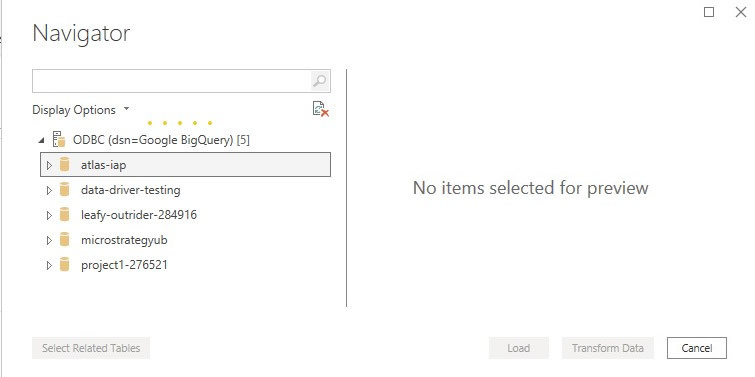
Step 6: Load and Explore Your Data in Power BI
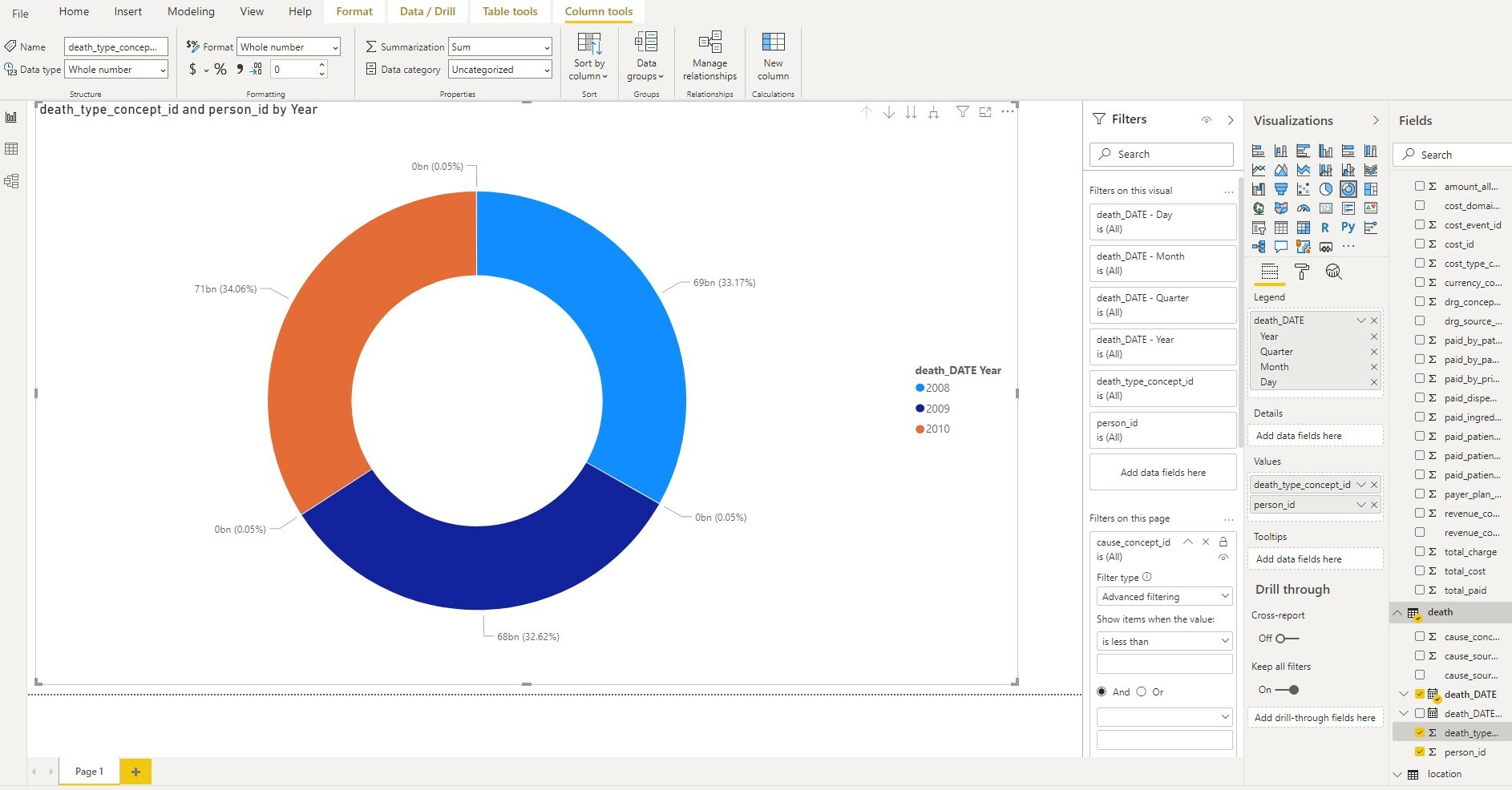
Once you’ve completed these steps, you’re all set to unleash the full analytical power of Power BI.
Common Issues Users Face When Connecting Power BI to BigQuery
Although adding Power BI to BigQuery can improve your team’s processes, the setup does not come without its challenges. Here are a few common issues teams run into that are worth keeping in mind if you are considering merging the two:
Cost Management
When calculating charges, BigQuery charges by the amount of data scanned. If your team is unable to optimize your Power BI queries, costs can add up quicker than expected.
Authentication Issues
Monitoring and managing accounts across your various reports can become challenging the more you scale your team.
Data Transformation Concerns
Power BI certainly has strong data transformation abilities; if your data from BigQuery needs to be cleaned or reshaped, it might not be able to be immediately usable in reports. If this is the case, additional processing time will be needed before you can utilize Power BI fully. Slower report load times can also become a major concern for teams, depending on the size of the original BigQuery dataset. Though it’s not always obvious, Power BI includes connectors, or drivers, to a variety of data sources, though some companies still need help accessing the data.
Upgrade Your Power BI Data Visualization Experience with Simba.
For technical teams managing complex data environments, performance and reliability isnt just optional, but critical for success. If your dashboards aren’t functional, neither are your insights. Simba connectors by Insightsoftware ensure that Power BI and BigQuery work together seamlessly, in turn making the most of your data. Optimized for high-volume queries, secure authentication, and low-latency data access, Simba’s ODBC and JDBC drivers ensure that your Power BI dashboards run as efficiently as possible, regardless of dataset size. Choose Simba today to maximize the performance, scalability, and reliability of your data while ensuring the accuracy of your business predictions for tomorrow.